How To Connect A PS4 Controller To PC With Bluetooth
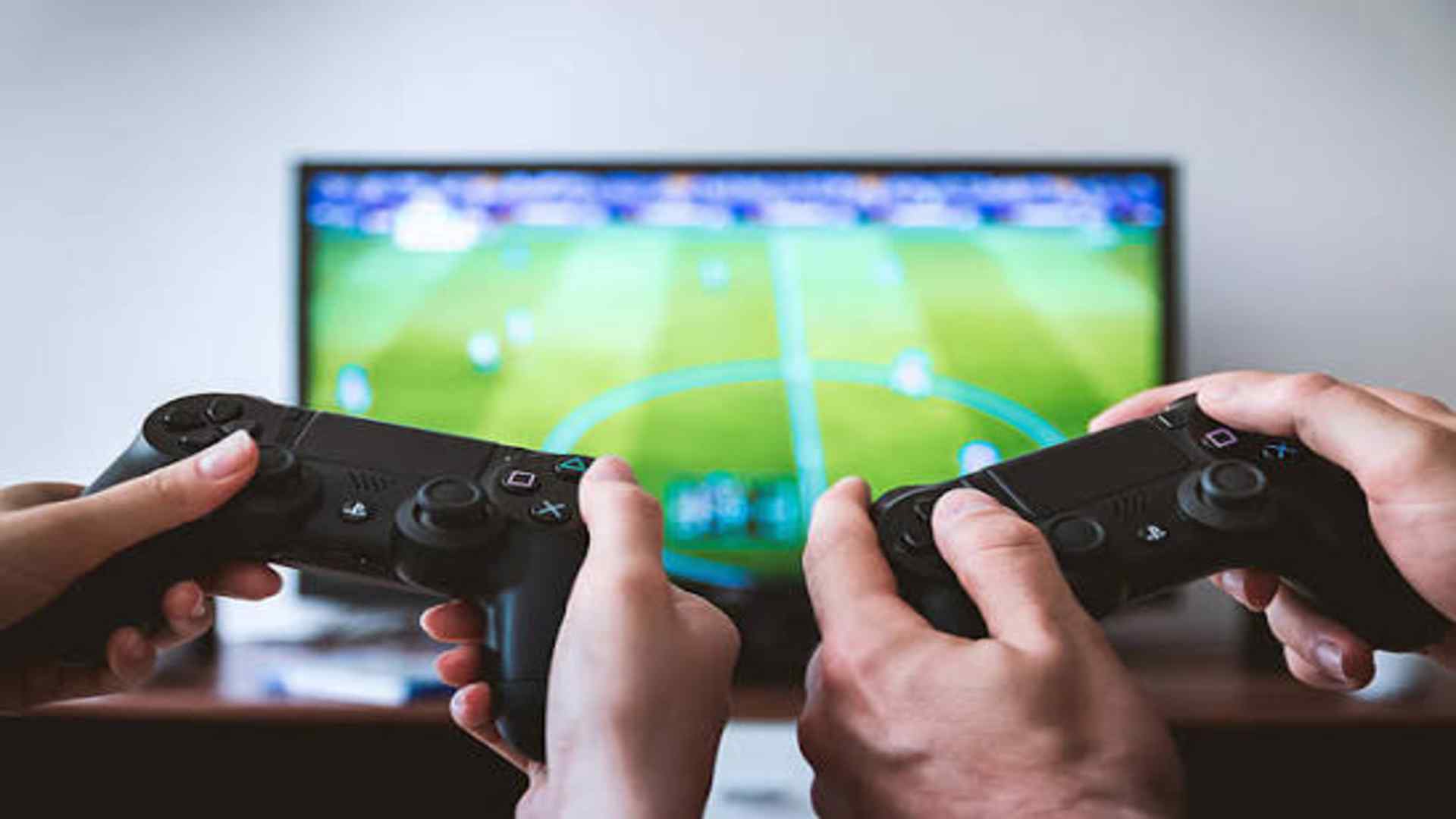
Connecting a PlayStation 4 DualShock 4 controller to a personal computer opens up a world of versatile gaming options for PC enthusiasts who prefer a gamepad layout over a traditional keyboard. Utilizing a wireless connection removes cluttered cables from your workspace while providing a responsive gaming experience across various digital distribution platforms. Understanding the specific steps to pair these devices ensures a smooth setup process without encountering unnecessary hardware synchronization issues.
Preparing Your PC and Controller for Pairing
Before initiating the wireless connection process, you must ensure that your computer has active Bluetooth functionality enabled through the system settings. Desktop users might require an external USB Bluetooth dongle if their motherboard does not include a built-in wireless chip. Additionally, make sure your DualShock 4 controller has sufficient battery charge to maintain a stable connection during the discovery phase.
To put the gamepad into its official pairing mode, simultaneously press and hold the central PlayStation button and the Share button located on the left side. Keep holding both buttons down for a few seconds until the light bar on the back of the device begins to flash rapidly in a white pulsing pattern. This visual indicator signals that the gamepad is actively broadcasting its wireless signature and is ready to be discovered by nearby computers.
Configuring Windows Bluetooth Settings
On your computer, navigate to the main settings menu and select the devices section to manage your wireless attachments. Click on the option to add a new device and select Bluetooth from the list of available connection types to start scanning. Your system will begin searching the immediate area for broadcasting hardware that is ready to sync.
Within a few moments, a new entry labeled Wireless Controller should appear on the list of discoverable devices near your workstation. Click on this entry to initiate the formal pairing process between the operating system and the gamepad. Once the connection is successfully established, the rapid blinking on the light bar will change to a solid, continuous color.
Optimizing Game Compatibility and Mapping
While modern operating systems recognize the hardware immediately, certain older titles might require additional software configuration to map the inputs accurately. Popular gaming platforms like Steam offer comprehensive built-in support that automatically translates the inputs for your library. Adjusting the controller settings within these platforms allows you to customize the button layouts and touch pad functionality.
For games outside of supportive ecosystems, downloading third-party mapping utilities can bridge the compatibility gap effectively. These lightweight programs wrap the inputs to mimic standard Xbox controller configurations, ensuring seamless functionality across almost any modern application. Taking a few moments to calibrate the analog sticks within your preferred software guarantees optimal precision during intense gameplay sessions.